Flows
A flow is your qualification machine: one public link where a lead answers your questions out loud, LeadPass checks the answers against the criteria you set, and a verdict — Pass, Review, or No pass (or Incomplete, when required evidence never arrives) — comes out the other end with the evidence behind it. You describe your business once, LeadPass builds the questions and checks for you, and everything stays editable from the flow editor at /app/flows.
Create a flow from a brief
Open Flows → New flow (/app/flows/create) and give LeadPass two things:
- Your brief — what you sell, who it helps, which leads are worth your time and which calls you would rather avoid. Free text, up to 4,000 characters.
- The next step — what should happen when someone is a good fit (e.g. "A sales call with our team"), plus an optional link so leads who pass can open it the moment they finish.
Stuck on the blank page? Pick one of the built-in example briefs and edit your own facts and numbers into it, or use Copy a prompt for your AI — it copies a prompt you can paste into ChatGPT, Claude, or any assistant that knows your business, and the assistant writes a paste-ready brief for you.
Building takes about a minute, and you can leave the page — the flow will be ready when you come back. When the build finishes, the flow opens and its public link is live. The editor greets you with the builder's notes: how it interpreted your brief, what to confirm, and what to check before you share the link.
Under Advanced you choose the flow language — English or Spanish. It is the language your leads see: the questions, the messages, and the answering page. It defaults to your workspace language and is chosen when the flow is created.
Questions
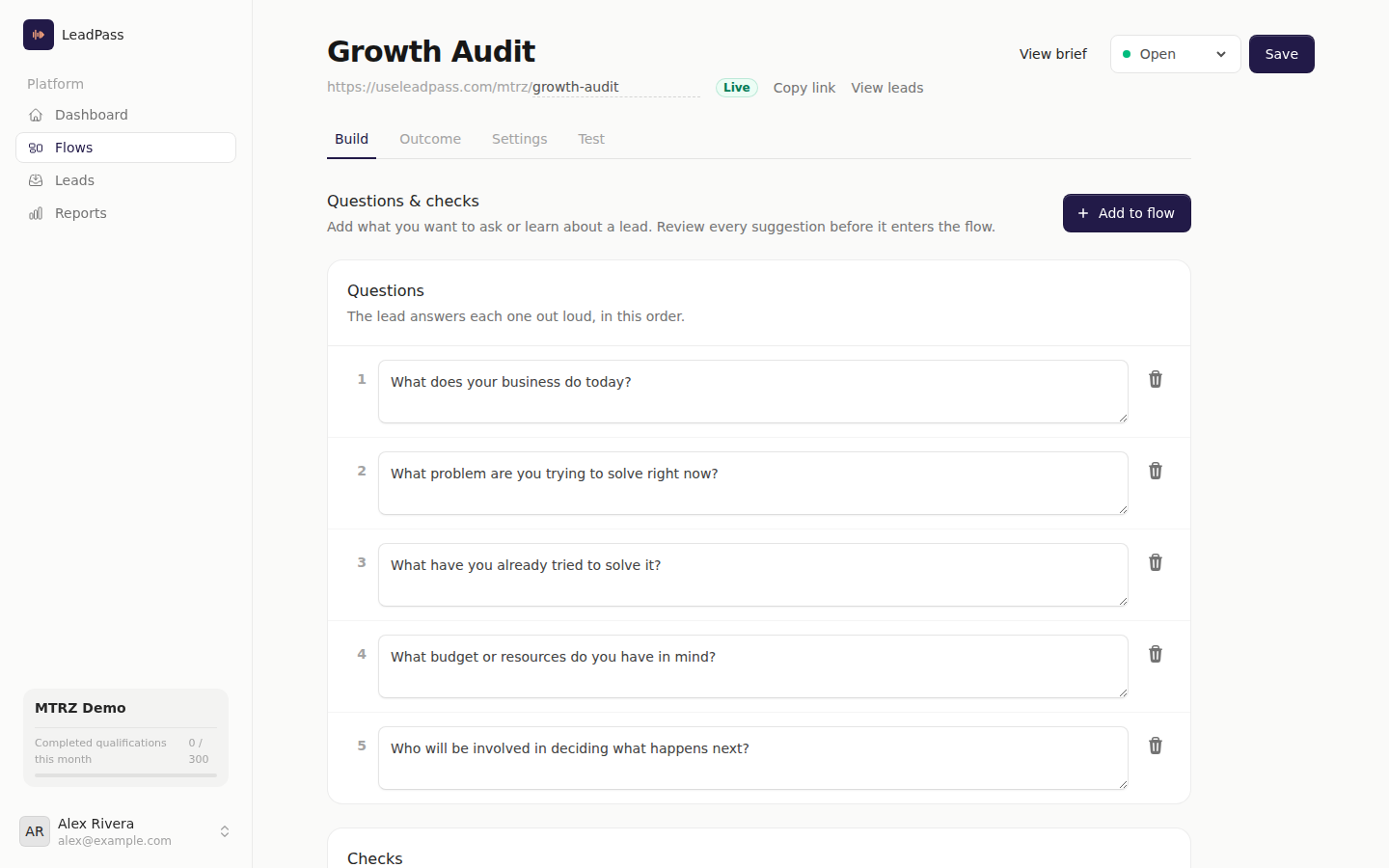
The Build tab lists the questions. The lead answers each one out loud, in this order. Edit the wording inline; a flow always keeps at least one question.
New pieces enter through one door: Add to flow. Write a question, something you want to learn about the lead, or both — LeadPass prepares the matching question and check as a pair, and nothing is added until you review and confirm it. The preview tells you when the evidence is already covered by the flow, and warns you when you add a question without its check (it will be asked but won't influence the verdict) or a check without its question (the flow may collect weaker evidence for it).
Questions gather the evidence; checks decide. When a check demands evidence that no question elicits, the editor shows a coverage warning so you can fix the question or relax the check — it is advisory and never blocks saving.
Checks
Checks are what the engine verifies about every lead before the verdict. Each check is a plain sentence — What LeadPass evaluates — plus one behavior you pick:
| Behavior | What it means |
|---|---|
| Consider it if met | Counts toward the verdict when the lead gives evidence for it. Never blocks on its own. |
| Consider it + ask if unclear | Essential: the flow re-asks live when the answer leaves it unclear. If the evidence never arrives, the lead ends Incomplete instead of getting a verdict. |
| Consider it + ask + require it to pass | Essential and a hard rule: a lead that does not clear it is knocked out, whatever the rest of the answers say. |
| Warning sign | Something you want to avoid. It weighs against the lead when present; an empty warning box is simply a clean lead. |
| Warning sign + disqualify if confirmed | A hard rule in the other direction: confirmed in the lead's own words, it disqualifies automatically. |
A flow can have at most 2 automatic disqualifiers (the two "require/disqualify" behaviors). The sentence you write is the condition — there is no second field to keep in sync.
Every check produces a band from no_data to very_high plus quoted evidence from the lead's own answers; you see them on the lead and in webhook payloads.
A flow cannot open without at least one check — without any, there would be nothing to qualify against.
The public link
Each flow lives at https://useleadpass.com/{your-workspace}/{flow-slug}. The slug is editable inline right under the flow's name in the editor — lowercase letters, numbers and hyphens. Changing it changes the address; the previous one stops working.
The badge next to the link tells you the truth about the saved link:
| Badge | Meaning |
|---|---|
| Live | Anyone with the link can answer. |
| Full | Open, but a lead limit has been reached. |
| Ended | Open, but its Open until time has passed. |
| Closed | The link is not taking new answers. |
The Open / Closed control switches the link. Closing stops new answers instantly; sessions already in progress can still finish. Opening a closed flow is checked at save time: it needs at least one check, a future Open until (if set), unused capacity on its limits, and a workspace that can accept new leads — the error tells you exactly which one to fix.
Limits and scheduling
The Settings tab carries three optional caps, all empty by default:
- Lead limit — total leads the link accepts; at the cap the link reads Full.
- Daily lead limit — leads per day; the link reads Full for the rest of the day and goes live again by itself at the daily reset.
- Open until — an exact date and minute after which the link reads Ended.
Daily resets and the closing time follow your workspace timezone, not the server's. Test runs never count against these limits.
Welcome and presenter
Also on Settings: the welcome the lead sees before answering. Leave it empty and leads see a standard sentence instead.
You can put a human face on the flow — Who presents this flow: a name, a job title, and a photo (JPG, PNG or WebP up to 5 MB; a square image looks best). They appear with the welcome and beside the final recommendation. Without a photo, leads see the presenter's initials.
What the form asks
Each flow chooses which contact fields the public form collects before the questions — Name, Email, Company and Phone, each Off, Optional or Required. Email or Phone must be Required so every lead can be contacted.
Editing a live flow
Edit freely — leads already mid-conversation are safe. Every lead locks in the flow's questions and checks the moment they start, so your edits apply to new leads only and never change the rules on someone halfway through. The manual-review switch follows the same rule: flipping it never moves leads already in flight.
Regenerate from the brief
The brief stays attached to the flow — View brief in the editor header shows what the flow was built from. Refine & regenerate lets you edit the brief and rebuild: regenerating rebuilds only the questions and checks. The name, welcome, messages, link, outcomes and your existing leads stay unchanged, and the flow language stays fixed.
Only flows created from a brief can regenerate. While the rebuild runs (usually under a minute) the editor is locked; if the rebuild fails, your current flow is still live and unchanged.
Test before you share
The Test tab exists so no real lead is ever your first experiment. Nothing here counts toward your quota or appears with your leads.
Try it yourself — open your own flow by voice: real transcription, real engine, real verdict. It works on draft flows too. Your past test-drives are listed on the tab so you can re-open a result and compare after a change; they are cleared automatically after 30 days. Test-drives have a daily limit per flow.
Example leads — one click generates five made-up people from your vertical who answer your questions and run through the real pipeline: a great fit, someone who misses something essential, someone who gives too little detail, a close call, and a call you would rather avoid. Each card shows the verdict, a summary, and any question the flow re-asked live; from there you can open the full lead or see exactly the final screen that persona saw. When a set already matches your current flow, edit a question, check or your brief to generate fresh ones. Generation has an account-wide limit that resets on a 24-hour window.
How many flows you can have
Your plan includes a flow allowance that is pooled across your whole account — every workspace draws from the same pool, so an agency can spread it unevenly over client workspaces. When your plan has an allowance, the flows list shows the count ("3 of 6 flows") before you ever hit the wall; at the limit, the create page offers the upgrade path at /app/billing. Deleting a flow frees its slot — and never deletes its leads.