Leads and verdicts
Every person who finishes a flow becomes a lead in your workspace, with a verdict — Pass, Review, No pass, or Incomplete — a written summary, and per-criterion evidence quoting what they actually said. The Leads inbox at /app/leads is built as a decision queue: you scan the list, read the analysis, and act — book, override, retry, or delete. Anything the AI could not decide on its own waits for you in the review queue.
The Leads inbox
Open Leads (/app/leads). The left column lists your leads newest first — name, status, flow, verdict badge, answer count, and the overall read. Selecting a lead opens its full sheet on the right.
To find a lead:
- Search matches name, email, company, or flow name (press
/to jump to the box). - Filter by flow, by status — Complete or Needs attention — and by result: Pass, Review, No pass, or Incomplete, each with live counts.
- Navigate with
↑/↓orJ/K; the list loads 50 at a time with a "Show more" button.
Every lead has a stable link (the lead parameter in the URL) you can share with a teammate working in the same workspace. To share across workspaces, use the links.lead URL from a webhook payload — that one opens the right workspace for any signed-in teammate with access, whatever workspace they had active.
Leads appear in the inbox from the moment someone starts answering, with their live state on the card (Answering, Analyzing, and so on); transcripts and analysis fill in when processing completes. Your own test runs are excluded from the list, so real pipeline numbers stay clean. If you invite a client to their workspace, they see the same inbox read-only — deciding, retrying, and deleting stay with you.
Verdicts
| Verdict | What it means |
|---|---|
| Pass | The answers satisfied the flow's criteria — this lead is worth your time. |
| Review | The AI could not confidently call Pass or No pass. The lead waits for your decision (unless the flow routes Review leads onward automatically). |
| No pass | Not a fit. When a hard rule caused it, the sheet names the exact rule that failed. |
| Incomplete | The answers didn't give the AI enough to decide — a check marked must be answered (or carrying a hard rule) never got evidence, or no check did. Not a rejection — the sheet suggests asking the lead to redo the flow or following up directly. |
On flows set to manual review, no verdict publishes by itself: every completed lead shows the AI's verdict as a proposal (a dashed badge marked "proposed") until you confirm or flip it in the review queue. Until then the lead's own result screen shows the Review outcome and no next-step button fires.
Reading a lead's sheet
The sheet leads with the Overall read and the Summary, then explains itself:
- Why panels. A No pass caused by a hard rule shows "Why: a hard rule failed" with the criterion and the rule text. An Incomplete shows "Why: required evidence is missing" with the criteria that never got evidence.
- Criteria cards. One card per criterion with its band — No data, Very low, Low, Medium, High, Very high — and a quote-level evidence line. Colors already account for the criterion's polarity: green is always good news, red always bad, so a low band on a risk criterion reads green. Cards also flag Hard rule and Must be answered criteria.
- Answers. Every question in the order the lead met it — including any follow-up questions the AI asked to fill evidence gaps, labeled as such — with the audio recording (when the flow's privacy setting keeps it) and the transcript. If a recording could not be transcribed, the lead is scored on the answers that did come through, and the sheet says so.
- What they saw. The See what they saw button opens the lead's actual final screen, read-only.
A lead marked Needs attention failed processing. When it was the lead's own doing — they left before answering, or never came back for follow-ups — the sheet says exactly that. When the saved recordings or transcripts allow it, a Retry button re-runs the analysis.
The review queue
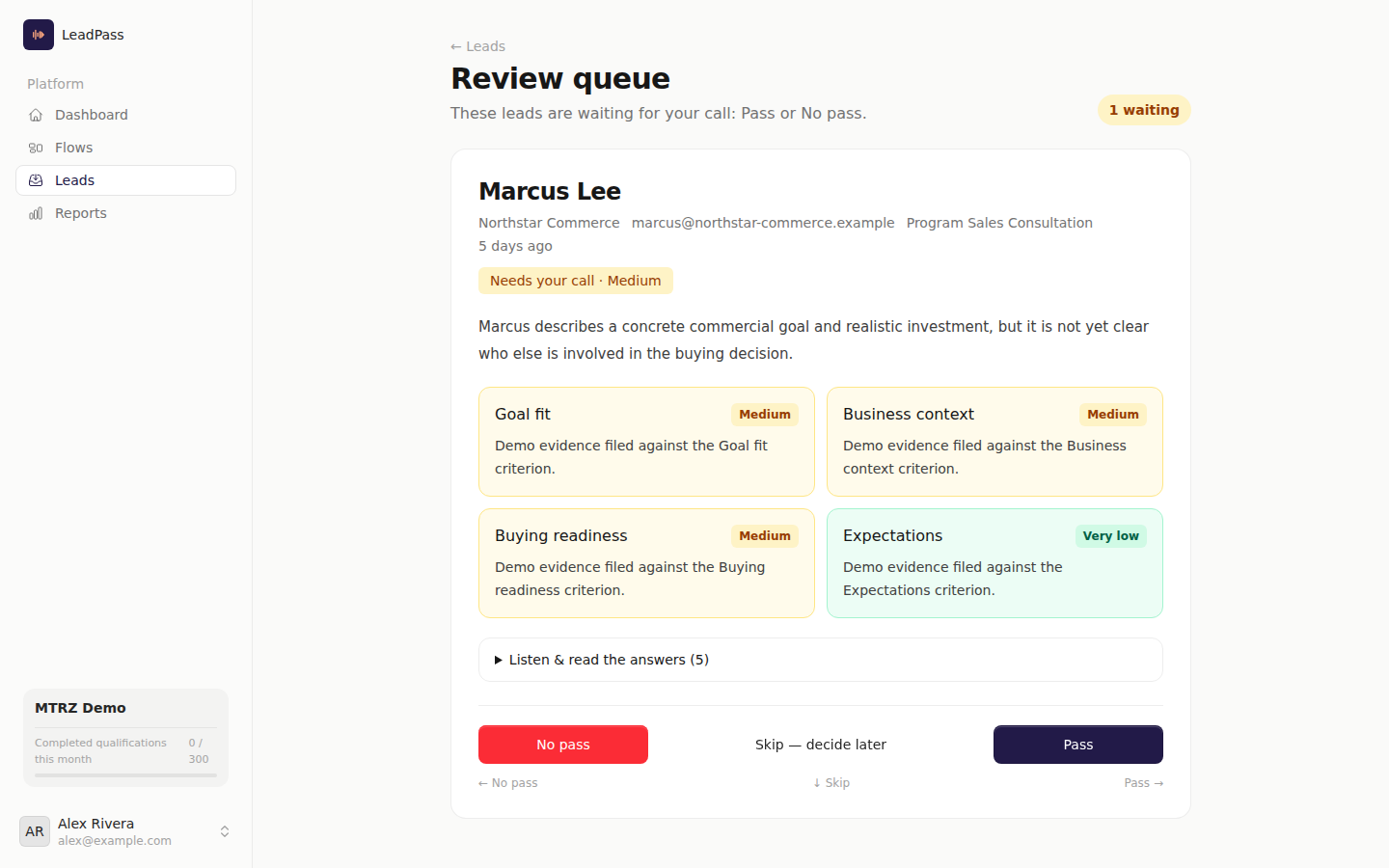
The queue at /app/leads/review holds every lead waiting for your call: Review verdicts on flows that keep that tier manual, plus every completed lead on manual-review flows. A count badge on the Leads page links straight to it.
The queue shows one lead at a time — summary, criteria, expandable answers — and three actions: Pass (→), No pass (←), Skip — decide later (↓). On manual-review flows the card states the engine's proposal ("The engine proposes: Pass") and what would have happened in automatic mode, and the matching button becomes a one-tap confirm.
When you Pass a lead, a hand-off card gives you their email and your booking link to copy — reach out while they're hot. If the flow has the approved-lead email switched on, LeadPass instead emails the lead a private link to their Pass screen — provided the lead left an email and the Pass outcome has a link to offer (this applies to Review-to-Pass decisions; it's off by default).
If leads sit in the queue for more than a day, LeadPass emails the workspace owner with the waiting count and a link that lands on the right workspace's queue. And once your decisions consistently agree with the engine's proposals on a flow, the queue suggests switching that flow to automatic.
Overriding a verdict
Any decided lead can be re-decided by hand from its sheet: Override to Pass or Override to No pass (Review must be resolved into one of the two). The lead's result page updates to reflect the new verdict, the original AI read stays visible — the sheet keeps a note like "Set by hand — the engine said Review" — and your webhook endpoint hears the change as a lead.verdict_revised event (see Webhooks).
Two safeguards: a lead still waiting in the review queue must be decided there, and if the lead was re-analyzed or decided by a teammate between your reading and your click, the override is refused so you can re-read the current analysis first.
Re-testing against flow changes
After you edit a flow's questions or criteria, the sheet's Re-test panel replays a lead's same answers under the new configuration — the original result stays untouched and the lead never sees it. You get a before/after comparison of the verdict, the overall read, and every criterion, with edited, added, and removed criteria flagged. If the re-test lands on Pass, an Apply Pass to the original shortcut rescues the real lead through the normal override path. Re-tests require an actual flow change, run one at a time, and are limited per flow per hour.
Deleting a lead
Delete lead on the sheet erases the lead for good — recordings, transcripts, and the analysis — with no recovery. This is also your GDPR right-to-erasure path when a lead asks to be removed. Deleting a lead also removes its webhook delivery records immediately.
Recordings can be gone before the lead is: flows can promise leads that audio is deleted right after qualification, or after 30 days. When that has happened, the answer card says so and keeps the transcript.