What your leads experience
Your flow's link is your page, not ours: your logo, your welcome, your language, your next step. A lead opens it, answers your questions out loud one at a time, and lands on a closing screen you control — your outcome message, optionally an AI-composed personal read built from material you provided — never a verdict label, never a score. This page walks through exactly what a lead sees from click to finish, so you know what you are sending people into before you share the link.
The link they open
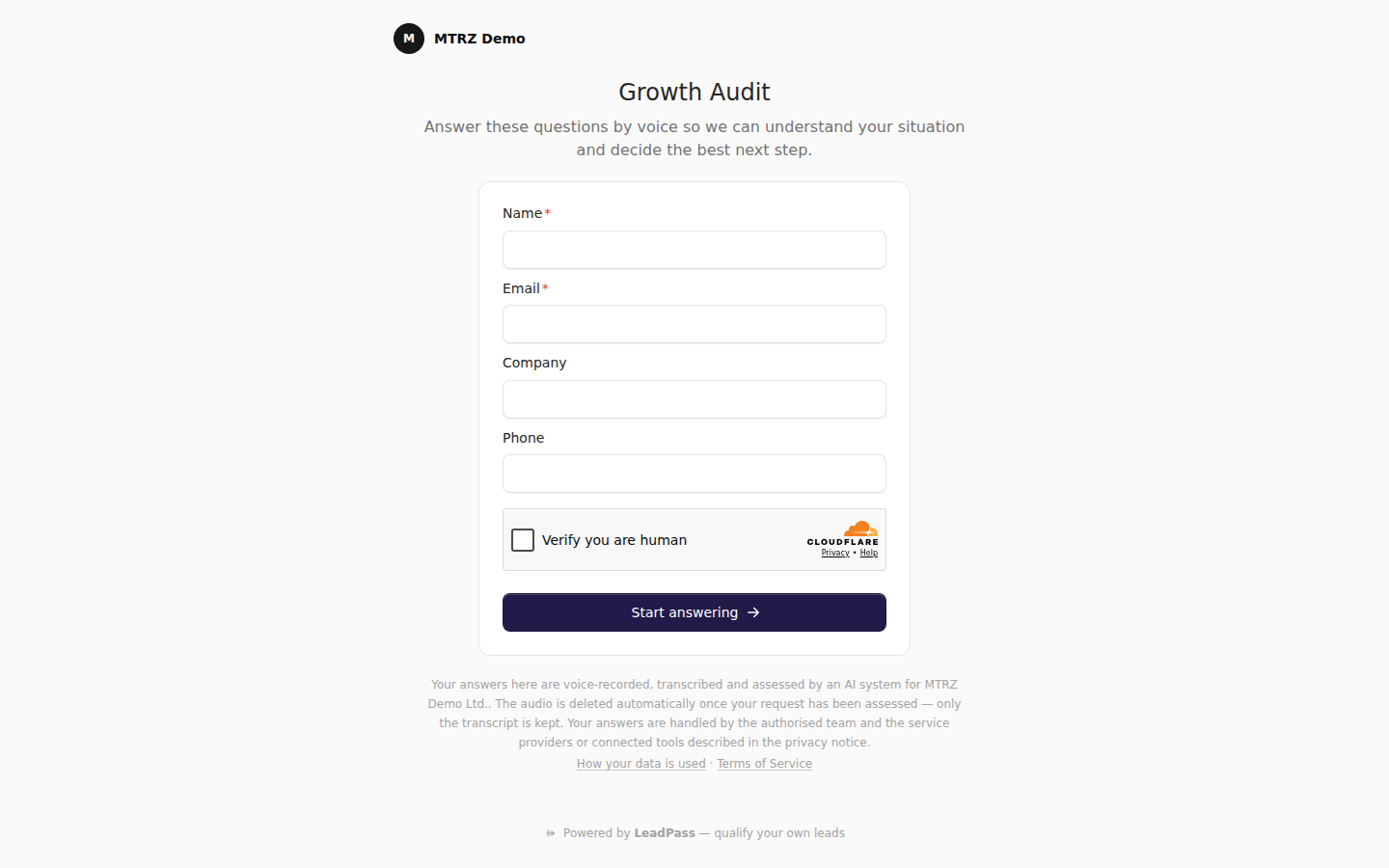
Every flow has a public URL built from your workspace and flow names (useleadpass.com/your-workspace/your-flow). The page carries your identity: your uploaded workspace logo, or a monogram with your workspace name when you have not uploaded one. LeadPass appears only as a small "Powered by LeadPass" line in the footer, which opens in a new tab so an in-progress recording is never lost. The page also asks search engines not to index it — a shared link stays shared, not published.
The welcome screen shows the flow's name, your welcome message (a neutral default if you left it empty), and — when you configured one — the speaker presenting the flow: name, role, and photo or initials.
If the flow has reached its answer cap or its "Open until" date has passed, the lead sees a neutral "This link is full" / "This link is closed" card. It never mentions your settings or your billing state, and a lead already mid-flow can always finish.
Before they answer
Under the welcome, the lead fills the contact fields you chose for the flow — name, email, company, phone, each off, optional, or required (LeadPass always keeps at least email or phone required so every lead is reachable). Required fields come first and are marked with a red asterisk.
Below the form, before any answer is given, sits a quiet privacy note: a fixed disclosure that answers are voice-recorded, transcribed, and assessed by an AI system for your business; the retention promise that matches the audio retention policy you picked for the flow (the sentence is derived from the policy — it is a product guarantee, not editable copy); and links to the flow's privacy notice ("How your data is used") and the Terms of Service. Spam protection runs quietly in the background — most humans never see a challenge, and bots are filtered out before they can waste your quota.
Answering by voice
Answers are voice-only — there is no typing fallback. Questions come one at a time, with a "Question 2 of 4" counter and a progress bar. For each question the lead:
- Taps the record button (the browser asks for microphone permission the first time).
- Speaks freely — at least 3 seconds, up to 10 minutes, with a live volume meter; the recording stops automatically at the limit.
- Listens back to the recording, and can Record again as many times as they want before sending.
- Taps Use this answer to submit and move to the next question.
The retention promise is restated right on the recording screen, at the moment of trust. Clear messages cover the unhappy paths — permission denied, no microphone, a browser that cannot record (with a prompt to open the link in a modern one), a very quiet recording. If the lead refreshes or comes back later in the same browser, the flow resumes at the first unanswered question; nothing already recorded is lost.
After the last question, LeadPass may ask a short round of follow-ups — labelled "Quick follow-up" and introduced as "One quick clarification based on your answers" — using the same recording mechanics.
The end of the flow
When the last answer is in, the lead sees "Preparing your response" and the page updates by itself. What arrives is a single narrative, and verdict labels are deliberately absent — a lead never reads "Pass" or "No pass":
| Piece | What the lead sees | When |
|---|---|---|
| Personalized response | A short personal read of their answers plus one to three numbered points drawn from the material you provided | When you enabled it for that outcome and gave it material to work from |
| Recommended next step | The outcome message you wrote for that verdict, presented with your speaker's name, role, and photo | When the outcome has a message |
| Next-step button | A button (your label, or "Continue") that takes them to the URL you configured | When the outcome is a redirect with a valid URL |
If the personalized response takes a moment, the lead sees a brief "Building your personalized response…" state; if it cannot be produced, the page settles cleanly without it — the next step is never held hostage. The first click on the next-step button is recorded, so absence of a click means "no measured click", never a broken page.
In manual review mode, a lead awaiting your decision sees the Review outcome you configured, with no button — your next step only executes once you decide. On a shared device, a discreet "Not you? Start a new response" link lets the next person start fresh instead of reading someone else's result. And if processing genuinely fails, the lead gets an honest error card with a "Start again" button where a restart is possible — never a blank page.
The durable result link
When you approve a lead from Review to Pass and the flow's approved-lead email is on (and its Pass outcome has a working button, and the lead left an email address), the lead receives an email — in the flow's language — with a private, signed link to their result page. That page shows the same personalized response, recommended next step, and button as the live flow, reflects the current state if anything changed, works without any login, and rejects any tampered link.
See it for yourself
Open your own flow link with ?test=1 while signed in. You run the real experience end to end under a visible "Test mode" banner — it never counts as a lead, and test recordings are deleted after 30 days. From the finished screen you can compare the response with and without the AI insert, jump between finished test runs, and open the same lead on your side of the app.
Everything above renders in the flow's language — English or Spanish today — including error messages, the privacy note, and the result email. And the moment the verdict lands on your side, webhooks can push it wherever your team works.