Workspaces, teams and agencies
LeadPass separates who pays from where the work happens. Your account holds the plan, the billing and your team; each workspace inside it holds its own flows, leads and public links. A solo business is one account with one workspace. An agency is one account with a workspace per client — separate flows, separate leads, separate public URLs — all sharing the plan's pooled allowances. Signing up creates the account and its first workspace, both named after the business name you typed.
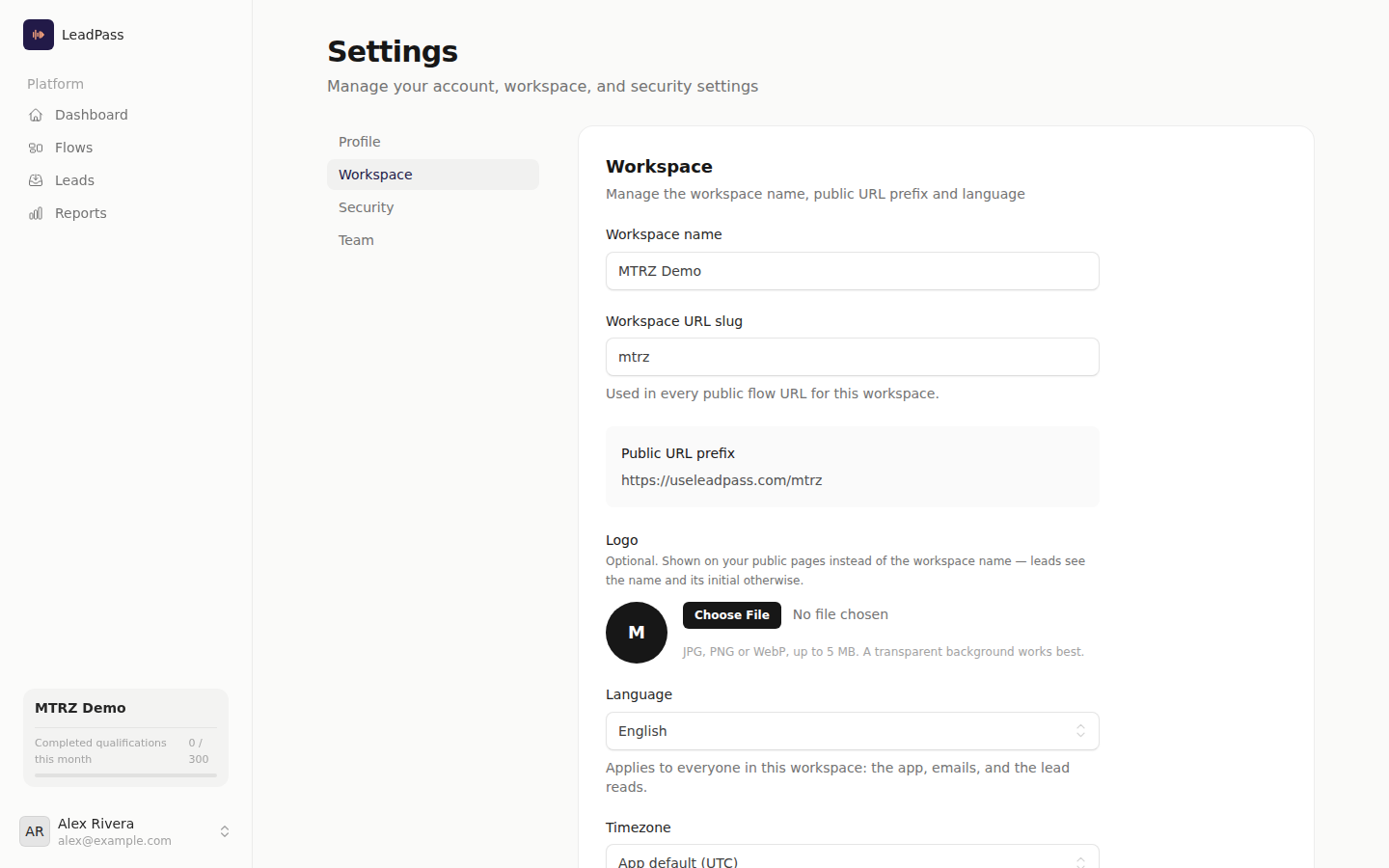
Workspace settings
Settings → Workspace (/app/settings/workspace) is where a workspace gets its identity. Account owners and admins can change these; members see them read-only.
| Setting | What it does |
|---|---|
| Workspace name | The brand leads see on your public pages when no logo is set. |
| URL slug | The prefix of every public flow URL for this workspace (useleadpass.com/your-slug/your-flow). Changing it changes the address of every public flow link — anything you already shared points at the old one. |
| Logo | Optional. Shown on your public pages instead of the workspace name. JPG, PNG or WebP, up to 5 MB — a transparent background works best. |
| Language | English or Spanish. Applies to everyone working in this workspace: the app, emails, and the AI-written lead reads your team sees. |
| Timezone | The clock your flows' daily limits and "Open until" times run on. Defaults to UTC until you pick one. |
Two things the Language setting does not change: what leads see (each flow speaks its own language, set when the flow is built) and other workspaces (each one can run in its own language, so one account can serve a Spanish client and an English one side by side).
The logo appears in two places: the header of the public flow page a lead talks to, and the lead's durable result page. It replaces the name text at its natural proportions — never cropped to a circle. Without one, leads see the workspace name and its initial.
Your team
Settings → Team (/app/account/team) manages who works in your account. Everyone on the team works across all of the account's workspaces — a solo consultant can have staff here just as well as an agency.
| Role | What they can do |
|---|---|
| Owner | Everything, including billing and the plan. The primary owner can never be removed. |
| Admin | Manage the team, workspace settings, and client workspaces — everything except billing. |
| Member | Work inside the workspaces: flows, leads, reports. |
To add someone, send an invitation with their email and a role (Admin or Member). They get a link to join; invitations expire after 7 days and can be re-sent or revoked at any time. The link only works for the email address it was sent to — someone signed in under a different address cannot accept it. If the invitee doesn't have a LeadPass login yet, the link takes them through registration and lands them directly in your account.
Sharing a workspace with a client
You can give someone outside your team a read-only view of one workspace — its leads and its reports, nothing else. They log in with their own email and never see your billing, your plan, or any other workspace.
Two doors, same result:
- Settings → Workspace → Share this workspace — from inside the workspace. This is the door every account has.
- The Share button on the Clients page — for agency accounts (see below).
Client invitations work like team invitations: an emailed link, 7-day expiry, re-send and revoke, and removal takes effect immediately. A client's panel starts at the Leads page — they have no dashboard, flow editor or settings beyond their own profile.
Running an agency
On an agency plan the sidebar gains a workspace switcher — every team member gets it — and, for owners and admins, a Clients page (/app/account/clients). Each client gets its own workspace — created in seconds from either place with just the client's name — and your plan's workspace, flow and qualification allowances are pooled across all of them: one client's busy month spends the same quota as everyone else's. The current usage against each allowance is always visible before you hit a limit. Plans and what they include are on the agencies page.
The Clients page shows the whole roster at a glance — flows, leads, and Pass / Review / No pass counts per client workspace — plus two per-client brakes:
- Pause — that workspace's public links stop taking new leads instantly. Leads mid-conversation still finish. Resume any time.
- Monthly cap — a per-workspace ceiling on completed qualifications. Once a client spends their cap this month, their links stop taking new leads while the rest of the pooled quota stays available to your other clients. Leave it empty for no cap.
Switching workspaces (from the sidebar switcher or the roster's Open button) moves your whole panel — dashboard, flows, leads, reports — to that client and lands you on its dashboard.
Belonging to more than one account
If you've been invited into someone else's account on top of your own, an account switcher appears above the workspace switcher in the sidebar. Switching accounts is a separate, deliberate step — the workspace switcher only ever moves within the active account, so you can never mix one account's clients with another's.
Related
- Webhooks — the webhook is configured per workspace, so each client's verdicts can flow to their own CRM or automation.